A practical setup guide based on security research and community-verified best practices.
One of the most common questions in home security forums goes something like this: “I am visiting my parents next weekend — what should I install on their PC to keep it safe while I am not there to help?” or ‘How to Protect Your Parents’ Computer From Viruses’ It comes up constantly, and for good reason. Research from the FBI’s Internet Crime Complaint Center consistently shows that adults over 60 are among the most targeted demographics for online fraud, losing more to cybercrime than any other age group.
The challenge is that most security guides are written for people who will actively engage with their security software. Elderly or non-technical users need something different — a setup that works silently, requires no decision-making from them, and alerts you when something goes wrong rather than presenting them with confusing prompts.
This guide covers exactly that — a practical, tested setup you can complete in about an hour during your next visit.
The core approach: The goal is zero-interaction security — a setup where the software handles everything automatically and your parent never needs to click, decide, or call you in a panic because of an alert. Everything in this guide is built around that principle.
The threats elderly users actually face — know these before you start
Security researchers and fraud prevention organisations consistently identify a different threat profile for elderly users compared to the general population. Understanding these shapes every setup decision:
⚠️ The three biggest threats for elderly computer users
Threat 1Tech support scams. A browser popup (or phone call) claims their computer is infected and they must call a number immediately. The “technician” then either charges for fake repairs or installs remote access software. The FBI reported over $924 million lost to tech support scams in 2024 — the majority from adults over 60. This is the number one threat to address.
Threat 2Phishing emails. Convincing fake emails impersonating banks, HMRC, Amazon, or parcel delivery companies. These ask for login credentials or personal details. Research shows older users are more likely to engage with these messages because they grew up in a higher-trust communication environment where letters and calls from institutions were generally genuine.
Threat 3Alert fatigue from bad antivirus choices. This one is counterintuitive — choosing overly complex security software that generates constant notifications can make elderly users more vulnerable, not less. When everything looks alarming, genuine warnings get dismissed alongside false ones. The antivirus choice itself matters enormously.

The complete setup — step by step
Step 1 — Install and configure the right antivirus
Bitdefender Total Security with Autopilot mode
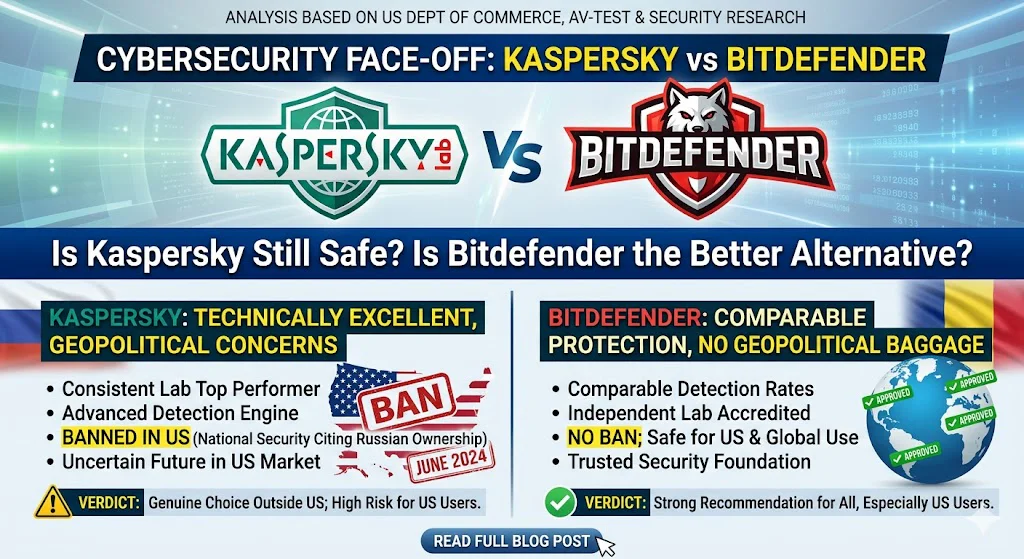
Security professionals and community recommendations consistently point to Bitdefender as the best choice for non-technical users because of one feature: Autopilot mode. When enabled, Bitdefender handles every security decision itself — threats are quarantined and removed without any prompt to the user. There are no “Allow / Quarantine / Ignore” choices to confuse someone unfamiliar with security terminology.
- Download Bitdefender Total Security from bitdefender.com (use the purchase link to get the discounted first-year price)
- Install it and complete the initial setup
- Open the Bitdefender dashboard and click the profile icon at the top right
- Select Autopilot → On
- Go to Notifications settings and reduce notification frequency to “Only critical alerts”
- In the account settings, add your own email address as a secondary notification contact
That last step is crucial — serious security alerts will now reach you, not them. They see nothing. You get notified.
Step 2 — Ensure Windows Defender is the backup if antivirus lapses
Verify Windows Security is correctly configured
- Open Windows Security from the Start menu
- Confirm it shows “Bitdefender is protecting your device” — meaning Bitdefender has taken over correctly
- Note: if Bitdefender’s subscription ever lapses, Windows Defender will automatically reactivate. This is the safety net.
- While here — go to Virus & Threat Protection → Ransomware Protection and enable Controlled Folder Access. This prevents any program from modifying Documents, Pictures, and Desktop without explicit approval.
Step 3 — Enable automatic Windows updates
Make sure the system patches itself
- Go to Settings → Windows Update
- Click Advanced Options
- Ensure Receive updates for other Microsoft products is on
- Set Active Hours to their typical waking hours — this prevents disruptive update restarts mid-use
- Enable Automatic restart outside active hours
Security researchers consistently identify unpatched operating systems as one of the most exploited vulnerabilities. Automatic updates close that gap without requiring any action from the user.
Macro Viruses and Their Impact on Office Software
Step 4 — Set scans to run overnight
Prevent daytime performance disruption
A full antivirus scan that runs during active hours on an older PC can make everything sluggish and alarming-looking. Scheduling scans for the middle of the night solves this completely.
- Open Bitdefender → Settings → Antivirus → Manage Scans
- Set the weekly full scan to run at 2:00 AM on a day they typically leave the PC on
- Alternatively, enable “Scan when idle” — Bitdefender will scan automatically when the PC has been unused for 30 minutes
Browser hardening — 3 quick changes that block the most common threats
Browser step 1 — Most important
Install uBlock Origin
uBlock Origin is a free, open-source browser extension that blocks the malicious ad networks responsible for the majority of scareware popups and tech support scam pages. Security community consensus rates it as one of the highest-value single security additions for any computer — and it is especially valuable for elderly users because it silently blocks the primary trigger for tech support scam calls before the page even loads.
- Open Chrome or Edge on their computer
- Go to the Chrome Web Store (or Edge Add-ons store)
- Search uBlock Origin — install the one by Raymond Hill with 40M+ users
- It needs no configuration — it works immediately after installation
Browser step 2
Set their homepage to a simple, safe page
Browser hijackers frequently change the homepage to a fake search engine. Setting the homepage explicitly to google.com or their email provider makes it obvious if anything changes it later — and gives them a familiar, trusted starting point every time they open the browser.
- In Chrome: Settings → On startup → Open a specific page → set to google.com
- In Edge: Settings → Start, home, and new tabs → set to google.com
Browser step 3
Enable enhanced phishing and malware protection
- In Chrome: Settings → Privacy and Security → Security → select Enhanced Protection
- In Edge: Settings → Privacy, search, and services → Security → ensure SmartScreen is On and Typo protection is On
Both settings are free and use real-time databases to warn before visiting known malicious or phishing sites.
How to Tell If Your Computer Has a Virus: 10 Real Warning Signs
How to monitor their PC remotely — without intruding
Security community discussions about protecting elderly relatives frequently raise the same practical problem: you cannot be there in person every time something goes wrong. Remote monitoring tools solve this. Here are two approaches:
- Bitdefender Central dashboard — log in at central.bitdefender.com from your own device. You can see whether their antivirus is active, when it last scanned, and whether any threats were detected. You can also trigger a remote scan. This is passive monitoring that does not disrupt their experience at all.
- Norton Family or Norton 360 for families — if you want more comprehensive oversight including device health, you can switch to Norton 360 which has a more detailed family dashboard. This is more appropriate if there are multiple family members to monitor.
- Windows Quick Assist — built into Windows 10 and 11, this lets you remotely view or control their PC with their permission. When they call because something looks wrong, you can connect and see exactly what they are seeing. No third-party software required.
The one conversation every adult child needs to have
Research from fraud prevention organisations consistently shows that no amount of software protection fully substitutes for awareness. Tech support scams succeed specifically because they bypass technical defences — they work on the person, not the computer.
The key points to cover clearly, in plain language:
- “Microsoft will never call you to say your computer has a virus.” Microsoft does not monitor individual computers. Any call claiming to be from Microsoft about a virus is a scam. The caller should be hung up on immediately.
- “A popup in a browser that says your computer is infected and gives a phone number is never real.” Real security software does not work this way. Close the browser and call you if they are worried.
- “Never let someone you don’t know remotely access your computer.” Legitimate companies do not ask for this unsolicited. If someone asks for remote access, hang up and call you.
- “If an email or message asks you to click a link and log in, do not click the link.” Go directly to the website by typing the address in the browser instead. This alone prevents the majority of successful phishing attacks.
- “If something looks wrong or scary, call me before you click anything.” This simple rule — pause and call — prevents a significant percentage of incidents. Reassure them they will never be in trouble for calling.
Complete setup checklist — everything in one place
Bitdefender Total Security installed with Autopilot On
Handles all security decisions automatically with no user prompts
Your email added as secondary notification contact
Security alerts reach you, not them
Scans scheduled for overnight
No daytime performance disruption
Windows automatic updates enabled
Active hours set to avoid disruptive restarts during use
Controlled Folder Access enabled
Ransomware cannot encrypt their documents or photos
uBlock Origin installed in their browser
Blocks scareware popups and malicious ad networks
Browser homepage set to google.com
Makes hijacking immediately obvious
Enhanced browser protection enabled
Chrome Enhanced Protection or Edge SmartScreen
Bitdefender Central set up on your own device
Remote monitoring of their protection status
The conversation happened
They know Microsoft never calls, popups with phone numbers are scams, and to call you before clicking anything scary
Bitdefender Total Security + Norton 360 (if you want remote monitoring)
For most setups, Bitdefender Total Security with Autopilot is the right choice — silent, lightweight, and handles everything automatically. If remote monitoring from your own device is the priority, Norton 360 Deluxe offers the most comprehensive family dashboard of any mainstream security suite.
Frequently asked questions
Last Updated on May 19, 2026 by Security Guru Jay