Based on testing infected machines, reviewing real malware case studies, and helping home users diagnose problems since 2008. May 2026.
Here is the problem with most “signs your computer has a virus” articles: they list symptoms that could equally describe a PC that simply needs a dust-out or a Windows update. A slow computer. A loud fan. Unexpected crashes. Every single one of those things can happen on a perfectly clean machine.
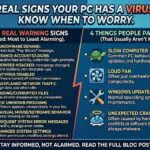
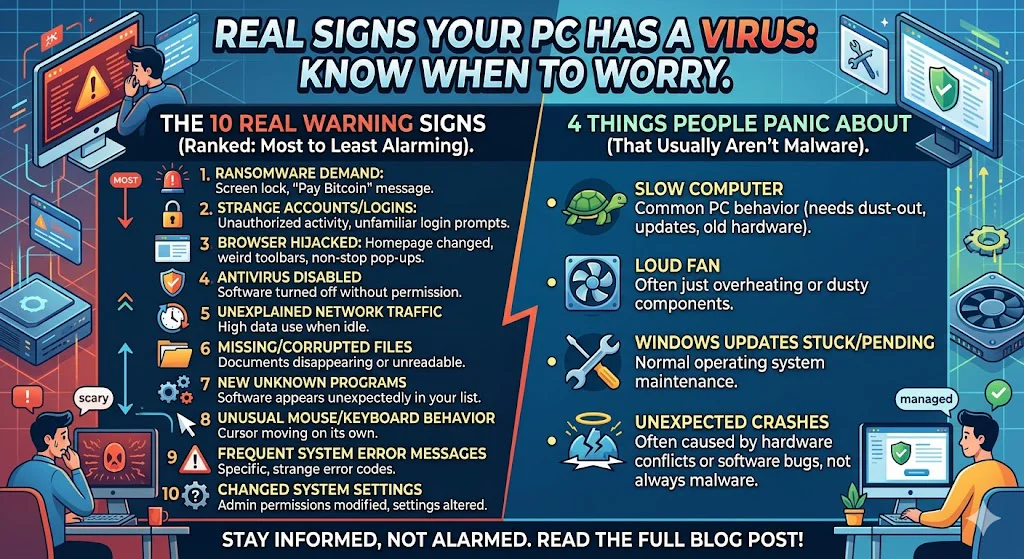
So I’m going to do something different. I’ll give you the 10 real warning signs on how to tell if your computer has a virus — ranked from most to least alarming — and then I’ll give you the 4 things people panic about that usually have nothing to do with malware. That way, instead of catastrophising every hiccup your PC makes, you’ll know exactly when to actually worry.
The only reliable way to know for certain is to run a scan. But if you are seeing any of the red warning signs below, treat it seriously and follow the scan steps at the end. If it’s only the amber signs, still scan — but there’s a reasonable chance it’s something else.
The 6 red warning signs — take these seriously
These symptoms are genuinely unusual. If a PC is clean and functioning normally, you should almost never see any of these. When they appear, treat it as a strong signal that something is wrong.
6 Act Immediately
Popups appear when no browser is open
This is the clearest sign of adware or malware. If advertising popups or warning messages appear on your desktop while your browser is completely closed, something is running in the background without your knowledge. Legitimate software does not do this. This was the first symptom I saw on a machine that turned out to have a serious adware infection — three different ad windows launching every few minutes with no browser open.
Windows Security (Defender) has been turned off and you didn’t do it
One of the first things sophisticated malware tries to do is disable the security software that might detect and remove it. If you open Windows Security and find that real-time protection is turned off — and you didn’t turn it off — that is a serious red flag. Go to Windows Security → Virus & Threat Protection → turn real-time protection back on, then immediately run a scan with Malwarebytes (since Defender may have been compromised).
Friends or contacts say they’re getting strange messages from your accounts
If people tell you they’ve received emails, Facebook messages, or WhatsApp messages from you that you didn’t send — especially messages with links, requests for money, or “you have to see this” style bait — your account or computer has almost certainly been compromised. This can mean your password was stolen by a keylogger or information-stealing malware. Change your passwords immediately from a different device, enable two-factor authentication, and scan your PC.
New programs, toolbars, or browser extensions appeared that you didn’t install
Open your browser and check the extensions list. Open Settings → Apps on Windows and look through the installed programs list. If you see something there that you definitely did not install — a toolbar with a generic name, a “PC optimizer,” a browser extension you don’t recognise — that’s adware or a PUP (Potentially Unwanted Program) that installed itself alongside something else. This is one of the most common forms of infection I encounter.
Macro Viruses and Their Impact on Office Software
Your browser homepage or default search engine changed without your permission
You open Chrome or Edge and instead of your usual homepage, something unfamiliar appears. Or your searches are being redirected through an unknown search engine. This is browser hijacking — a form of malware that monetises your browsing by rerouting your traffic. It is almost never something you deliberately chose, regardless of what the popup during installation claimed.
Ransom demand or “your files are encrypted” message
This is the worst one. If you see a message saying your files have been encrypted and demanding payment — typically in cryptocurrency — you have ransomware. Do NOT restart the computer. Do NOT pay the ransom (it often doesn’t result in file recovery). Close the laptop lid or shut the screen off and contact a local computer repair professional immediately. Restarting can sometimes trigger further encryption. This situation needs specialist help.
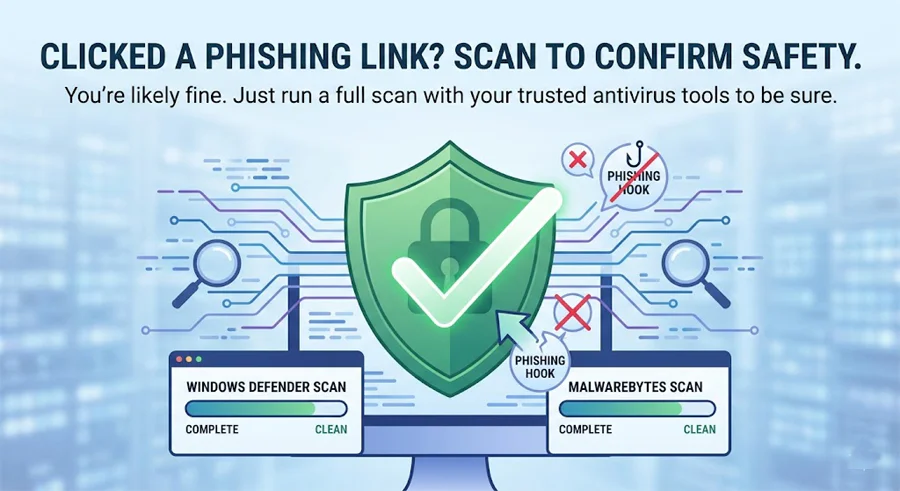
Windows Defender Found a Threat – What Do I Do Next?
4 amber signs — could be a virus, could be something else
These symptoms are worth taking seriously, but they have multiple possible explanations. Scan your PC if you see them, but don’t catastrophise before you know for sure.
Computer is suddenly much slower than normal
Some malware — particularly cryptominers that hijack your CPU to mine cryptocurrency — will slow your PC dramatically. But the far more common causes of sudden slowness are: a Windows update running in the background, a full hard drive (under 10% free space throttles performance), too many startup programs, or simply an ageing machine. Open Task Manager (Ctrl + Shift + Esc) and look at what’s using the most CPU and memory. If it’s a program you don’t recognise running at 80–100% CPU constantly, that warrants a scan.
Hard drive light is on constantly even when you’re doing nothing
Constant disk activity while idle can indicate malware writing data or communicating with an external server. But it more commonly means Windows is indexing files, installing an update, running a scheduled backup, or your antivirus is doing a background scan. Check Task Manager → Performance tab → Open Resource Monitor → Disk tab to see exactly what is accessing your drive. Unknown processes with high disk activity deserve investigation.
PC crashes or restarts unexpectedly
Some malware corrupts system files and causes crashes. But unexpected restarts are also caused by overheating (especially in laptops that need their vents cleaned), failing RAM, faulty Windows updates, or driver conflicts. If crashes are happening alongside other red-flag symptoms, scan immediately. If crashes are happening in isolation, check your event viewer (search “Event Viewer” in Start) for error codes and investigate those first.
You can’t access certain websites or your security settings
Some malware specifically blocks access to antivirus websites (like malwarebytes.com) to prevent you from downloading tools that would remove it. If you find yourself unable to reach security-related sites that work fine on your phone, or if your Internet Options and Windows Security settings are greyed out and inaccessible, that is a genuine red flag that something is interfering with your system.
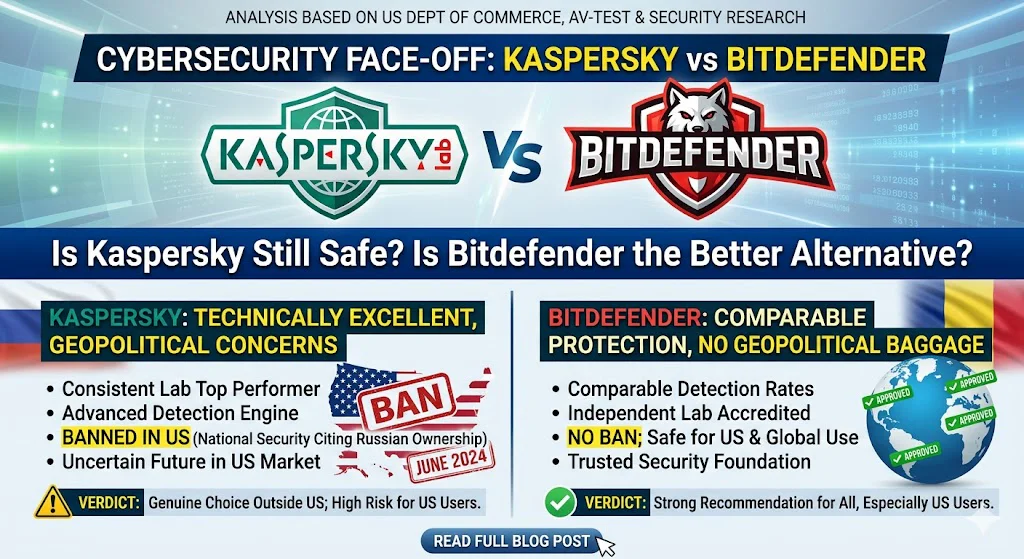
Free vs Paid Antivirus: Is It Actually Worth Paying in 2026?
4 things that are almost never a virus
These cause enormous unnecessary panic. Save your stress for the act immediately signs above.
🟢 “My computer is a bit slower than it used to be”
Almost always: accumulated software, startup programs, a fuller hard drive, and the natural ageing of hardware. Run Disk Cleanup, check your startup apps in Task Manager → Startup tab, and if the drive is more than 90% full, clear some space. A virus scan won’t fix these things even if it comes back clean.
🟢 “My fan is very loud”
Fan noise means your CPU is working hard, not that it’s infected. Common innocent causes: a Windows update installing, a video call, rendering a video, a full antivirus scan running, or simply dust clogging the vents (which forces the fan to spin faster to compensate). Clean the vents and the noise usually improves dramatically.
🟢 “A website showed a popup saying I have viruses”
Websites cannot detect viruses on your computer. Full stop. A popup inside a browser window claiming your PC is infected and urging you to call a number or download something is a scam — called “scareware.” Close the tab immediately. If the tab won’t close, use Task Manager to force-quit your browser. Your PC is fine.
🟢 “My PC is making a clicking or grinding sound”
This is almost certainly a failing hard drive, not a virus. A clicking or grinding hard drive is a hardware warning that needs immediate attention — back up your files right now and consider replacing the drive. A virus scan cannot fix a mechanical hard drive problem.
How to Protect Your Parents’ Computer From Viruses
What different types of malware actually do to your computer
“Virus” is a catch-all term most people use for any malicious software. In reality, there are several distinct types, and they behave very differently:
- Trojans — disguise themselves as legitimate software. Once installed, they open a backdoor giving hackers remote access to your machine. You often notice nothing unusual until they’re caught by a scan.
- Ransomware — encrypts your files (documents, photos, videos) and demands payment to restore them. Usually arrives via email attachments or compromised downloads.
- Keyloggers — silently record every keystroke you make, capturing passwords, banking details, and credit card numbers and sending them to a remote server.
- Adware — hijacks your browser, adds toolbars, changes your homepage, and floods you with advertisements. Usually annoying rather than dangerous, but can open the door to worse infections.
- Cryptominers — use your CPU to mine cryptocurrency for someone else. The main symptom is a dramatically slower, hotter computer with the fan running constantly — even when you’re not doing anything.
- Spyware — monitors your activity, collects personal information, and sends it elsewhere. Often bundled with free software that you installed legitimately.
- Rootkits — the most serious type. They embed themselves deep in your operating system, often at a level below Windows itself, making them extremely difficult to detect and remove.
My PC Is Suddenly Very Slow – Could It Be a Virus?
How to check your computer right now — step by step
Seen something concerning above? Here is the fastest, most reliable way to check for infection using free tools:
Step 1
Disconnect from the internet temporarily
Click the WiFi icon in your taskbar and disconnect, or unplug your ethernet cable. This stops any malware from communicating with its server or downloading additional components while you scan. You can reconnect after the scan is complete.
Step 2
Run a Windows Defender Full Scan
- Press the Start button and search Windows Security
- Click Virus & Threat Protection
- Click Scan options
- Select Full Scan (not Quick Scan)
- Click Scan now and wait — this takes 30–60 minutes
- If threats are found, click Remove, then restart your PC
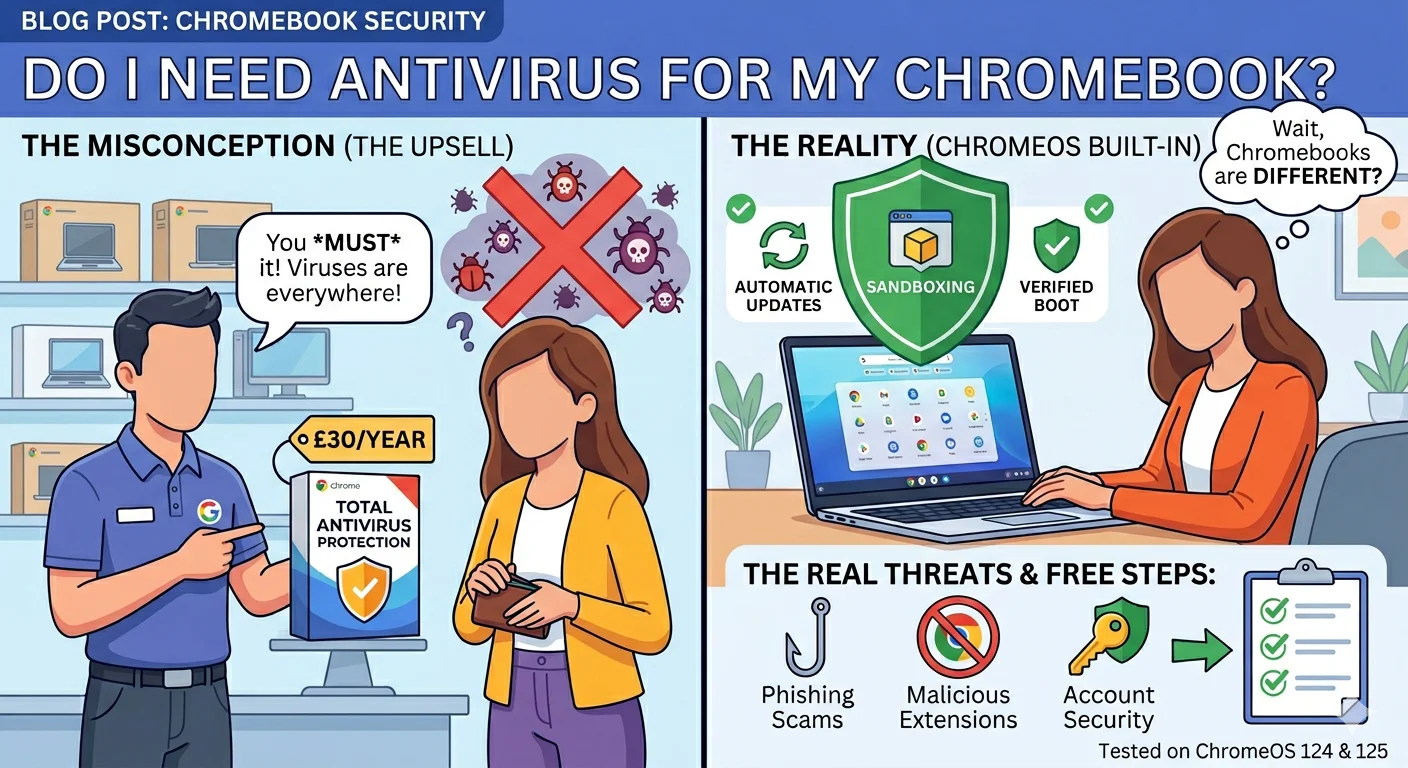
Do I Need Antivirus for My Chromebook? The Honest Answer
Step 3
Run Malwarebytes Free as a second opinion
- Reconnect to the internet briefly
- Go to malwarebytes.com and download the free version
- Install it, open it, and click Scan
- Click Threat Scan → Start Scan
- Quarantine anything found, then restart
For the full step-by-step removal guide including what to do after a scan finds something, see our detailed guide: I Think My Computer Has a Virus — Here’s Exactly What to Do.
Malwarebytes Premium — real-time protection that fills Defender’s gaps
Windows Defender is good — but it misses adware, PUPs, and phishing sites more often than we’d like. Malwarebytes Premium runs quietly in the background and blocks these threats before they can install, without slowing your PC down or conflicting with Defender.
Frequently asked questions
Last Updated on May 20, 2026 by Security Guru Jay