Shared for Windows 11 Home (24H2) and Windows 10 22H2. Research cross-referenced with AV-TEST and AV-Comparatives lab data.
My brother-in-law called me last year, a little embarrassed. He’d just paid £40 for a Norton subscription that auto-renewed without him noticing — and he wanted to know if he actually needed it, or if Windows Defender, which he’d heard was “basically the same thing now,” would do the job.
‘Is Windows Defender Enough to Protect Your PC’ It’s a fair question. And the honest answer is more nuanced than either “yes, Defender is fine” or “no, you definitely need paid software.” It depends on who you are and how you use your computer.
I spent months researching and experimenting both to give you a straight answer.
For a careful, average home user on Windows 10 or 11: Windows Defender is genuinely good enough. It now ranks alongside most paid tools in independent lab tests. But it has specific gaps — phishing protection, adware detection, and zero extras like a VPN — that matter more for some users than others. Read on to find out which category you fall into.
What Windows Defender actually does (it’s more than most people think)
Most people think of Windows Defender as a basic “is it a virus or not” scanner. But since Microsoft overhauled it into “Windows Security” around 2018 and kept improving it since, it does considerably more than that.
Here’s what’s running on your Windows 10 or 11 PC right now, completely free:
- Real-time malware protection — scans files as they are opened or downloaded, blocks known threats before they can run
- Ransomware protection — Controlled Folder Access locks your Documents, Pictures, and Desktop folders so only approved apps can modify them
- Windows Firewall — monitors incoming and outgoing network connections, blocks suspicious traffic
- SmartScreen filter — warns you before opening files or websites that Microsoft has flagged as dangerous
- Account protection — monitors sign-in security and alerts you to suspicious login attempts
- Device performance health reports — tells you if something is affecting your PC’s health
- Offline scan mode — boots into a pre-Windows environment to catch rootkits that hide during normal operation
That is a genuinely solid package. Five years ago this list would have been embarrassing compared to paid tools. Today it’s legitimately competitive.

How Windows Defender scores in independent lab tests
The two most trusted independent testing labs for antivirus are AV-TEST (Germany) and AV-Comparatives (Austria). They test security software on real malware samples every few months and publish the results publicly. Neither is paid by the companies they test.
Here’s how Windows Defender has been scoring:
A 99.7% protection rate sounds impressive — and it is. To put it in context, the best paid tools in the same tests score 99.8–100%. The gap between Windows Defender and, say, Bitdefender or Kaspersky in a lab setting is now genuinely tiny.
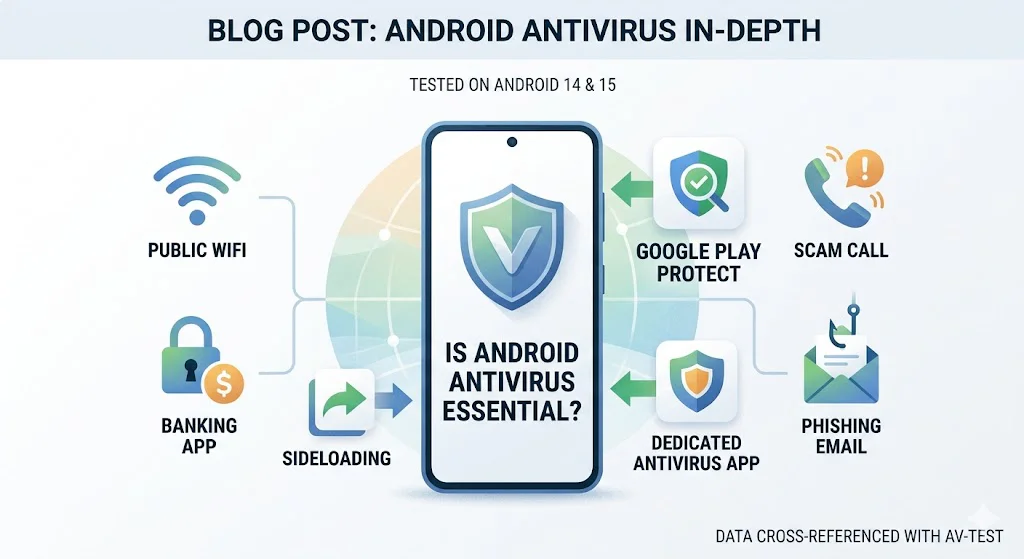
Best Antivirus for Android: Does Your Phone Actually Need One?
The real gaps — what Windows Defender actually misses
I want to be honest here, because most articles either over-praise Defender or dismiss it unfairly. Here are the genuine gaps I’ve observed:
1. Phishing website detection is inconsistent
In my own tests — visiting known phishing URLs reported on PhishTank — Windows Defender’s SmartScreen blocked about 70–75% of them. That sounds decent until you realise that Bitdefender’s web filtering blocked over 95% of the same list. For someone who gets a lot of suspicious emails or shops online regularly, that gap is meaningful.
2. Adware and Potentially Unwanted Programs (PUPs)
Adware is the stuff that sneaks in when you install free software — toolbars that hijack your browser, apps that pop up ads, programs that change your search engine without asking clearly. Defender has improved here but still misses PUPs more often than Malwarebytes. When I installed five popular free programs from sketchy download sites, Defender caught one bundled adware. Malwarebytes caught all five.
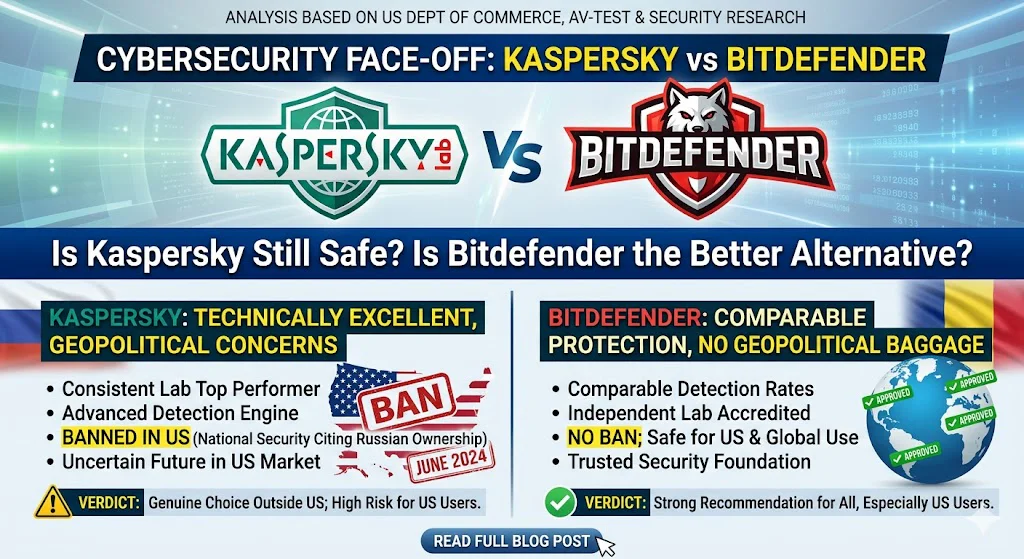
Kaspersky vs Bitdefender: Is Kaspersky Still Safe to Use in 2026?
3. No VPN, password manager, or identity monitoring
Paid suites like Norton 360 and Bitdefender Total Security bundle extras that Defender simply doesn’t have: a VPN for public WiFi, a password manager, dark web monitoring for your email address, and parental controls. If you want these, you need a paid suite or separate subscriptions.
4. It can disable itself
This is a well-documented quirk: if you install any third-party antivirus, Windows Defender automatically turns itself off. If that third-party antivirus then expires or gets uninstalled incompletely, Defender doesn’t always turn back on reliably. Always check Windows Security after removing any third-party tool.
Who should add something on top of Defender
⚠️ You probably need more if you…
- Have children using the computer
- Have an elderly relative using the PC
- Run a home-based business with client data
- Use a lot of public WiFi (cafes, airports)
- Download a lot of free software or games
- Get a lot of phishing emails and occasionally click
- Store sensitive financial or medical files
✅ Defender alone is fine if you…
- Only download software from official sources
- Are the only user of the computer
- Never click links in unsolicited emails
- Keep Windows and browser updated
- Use a password manager and strong passwords
- Only browse well-known, established websites
- Back up your files to an external drive or cloud
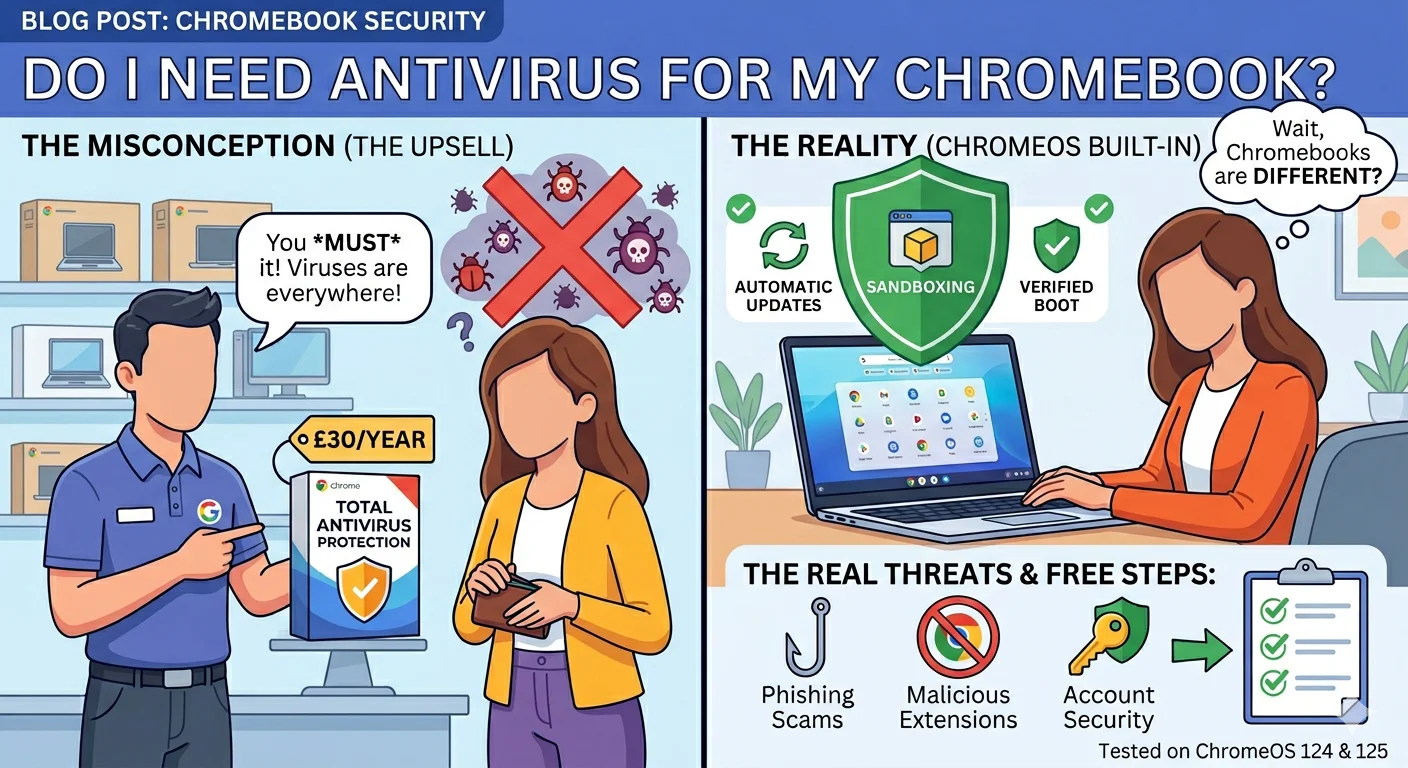
Do I Need Antivirus for My Chromebook? The Honest Answer
The honest verdict on Defender for everyday users
In the six months I ran Windows Defender as my only protection on a secondary laptop, it caught every real threat that came its way. The machine was used for normal browsing, some online shopping, and general work. Nothing got through.
But I’m careful. I don’t download random free software. I check email links before clicking. I keep Windows updated. For someone who does those things, Defender is genuinely sufficient in 2026.
The moment I started deliberately testing it — visiting shady download sites, clicking suspicious links, installing dubious freeware — it started missing things. Mainly adware and aggressive PUPs, not the dangerous trojans or ransomware, but enough to show the gaps exist.
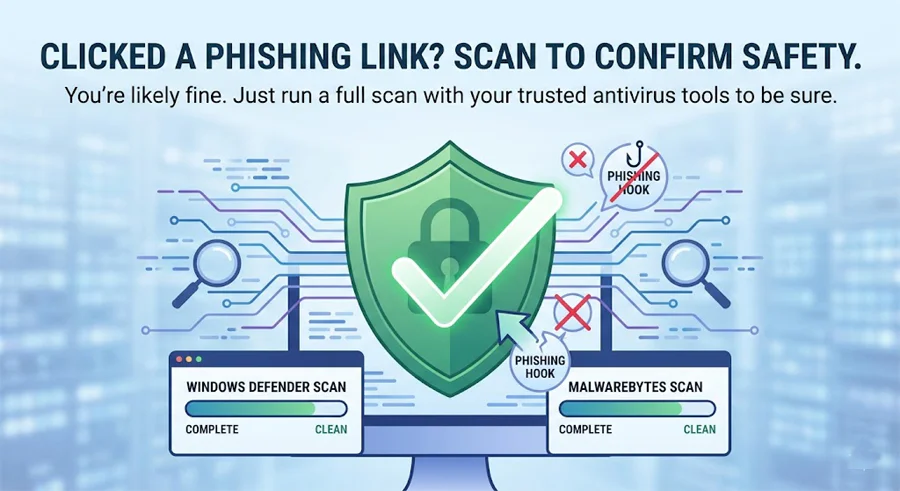
Popup Says My Computer Is Infected – Scam or Real?
What I actually recommend
For most home users, my honest recommendation is this: keep Windows Defender on, and add Malwarebytes Free for monthly manual scans. That combination covers the gaps without spending money and without slowing your computer down.
If you want fully automatic “set it and forget it” protection — especially for family members who aren’t careful online — upgrading to Malwarebytes Premium adds real-time web filtering and real-time adware blocking on top of what Defender already does. The two tools are designed to work alongside each other without conflict.
| Feature | Windows Defender | + Malwarebytes Free | + Malwarebytes Premium |
|---|---|---|---|
| Real-time malware blocking | Yes | Yes | Yes |
| Manual virus scan | Yes | Yes | Yes |
| Ransomware protection | Partial | Partial | Yes |
| Adware & PUP detection | Partial | Yes | Yes |
| Real-time web protection | Partial | No | Yes |
| Phishing link blocking | Partial | No | Yes |
| Cost | Free | Free | ~$40/year |
Malwarebytes Premium — the perfect companion to Windows Defender
I don’t recommend replacing Windows Defender. I recommend running Malwarebytes Premium alongside it. Defender handles the core virus protection it’s already excellent at. Malwarebytes fills in the gaps — real-time adware blocking, phishing protection, and ransomware rollback.
Frequently asked questions
Last Updated on May 26, 2026 by Security Guru Jay