Tested on Windows 11 Home (version 24H2) and Windows 10. Steps verified May 2026.
Last month, a friend of mine told me that his neighbor knocked on his door at 9 pm looking panicked. She said her laptop was “acting weird” — running slow, showing strange popups, and making noises like the fan was about to take off. She was convinced someone had hacked her computer. She’d already googled “I think my computer has a virus” and found three different articles telling her three completely different things.
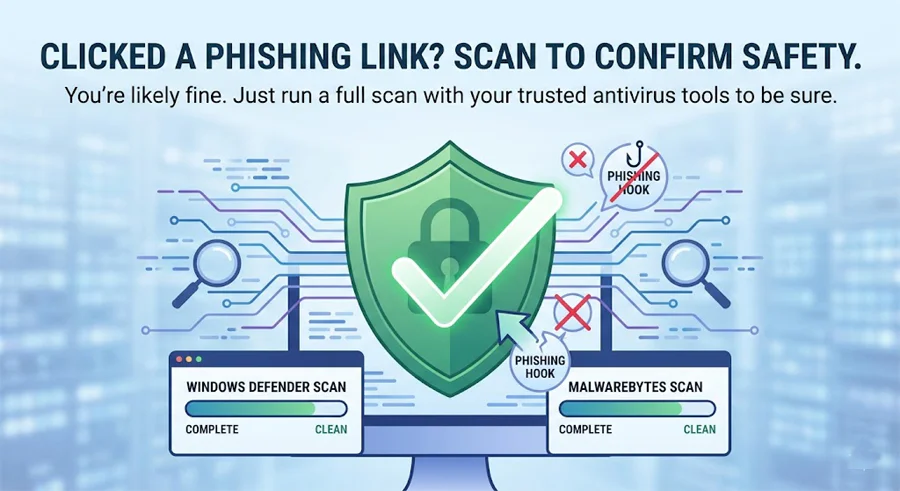
Sound familiar?
Here’s the thing: that kind of panic is completely understandable — but it usually makes things worse. People either ignore the problem and hope it goes away (it won’t), or they start clicking “Fix Now” buttons on random websites that end up making things far worse.
My neighbor’s computer turned out to be fine. A 20-minute scan, a restart, and one small setting change sorted it completely. But she would never have known that without a calm, step-by-step process.

That’s exactly what this guide is. Six steps. Free tools. No tech experience needed.
If you think your computer has a virus right now: disconnect from WiFi, open Windows Security (it’s already on your PC), and run a Full Scan. Then run a free scan with Malwarebytes as a second opinion. That combination catches the vast majority of infections — and it costs nothing. All the details are in the steps below.
First, let’s figure out if this is actually a virus
Here’s something most guides won’t tell you: the majority of people who think they have a virus don’t actually have one. Slow computers, annoying popups, and high fan noise are often caused by a Windows update running in the background, too many browser tabs open, or a program that launched at startup without you noticing.
That doesn’t mean you should ignore it. It means you shouldn’t panic before you’ve done a scan.
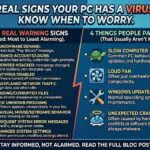
These are the symptoms that genuinely suggest a virus or malware:
If you have any of the red symptoms, treat it seriously and go through every step below. If it’s only the yellow symptoms, still run the scan — it only takes 20 minutes and gives you peace of mind.
Step 1 of 6
Don’t touch anything — do this first
Before you do anything else, disconnect your computer from the internet. If you’re on WiFi, click the WiFi icon in the bottom-right corner of your taskbar and click Disconnect. If you’re using a cable, unplug it from the back of the PC.
Why? Some malware — particularly the kind that steals passwords and banking details — is actively sending data out while your computer is connected. Others download additional malware files from the internet in the background. Cutting the connection stops that immediately.
You can reconnect once you’ve completed the scan in Steps 2 and 3. The scans themselves work offline — the virus definitions are already saved on your computer.
Step 2 of 6
Run Windows Defender — it’s free and already on your PC
Windows Defender (officially called “Windows Security”) has improved enormously over the past few years. In independent lab tests by AV-TEST, it consistently catches 98–100% of known malware threats. It’s a solid first step.
Here’s exactly how to run a full scan on Windows 10 and Windows 11:
- Click the Start button (Windows icon, bottom left)
- Type Windows Security and press Enter
- Click Virus & Threat Protection
- Click Scan options (underneath the Quick Scan button)
- Select Full Scan — not Quick Scan. Quick Scan misses things.
- Click Scan now
A full scan takes 30–60 minutes depending on how full your hard drive is. Don’t use your computer during this time. Let it run completely.
When it finishes, it will show you either “No threats found” or a list of items it has quarantined. If it found something and quarantined it, click “Remove” or “Delete” — not “Allow.” Then restart your computer.
Step 3 of 6
Run Malwarebytes — the best free second opinion
Windows Defender is good. But I’ve personally seen cases where Defender said “no threats found” and Malwarebytes caught a piece of adware that had been sending browsing data to an ad server for weeks. They use different detection engines and different threat databases. Running both takes an extra 15 minutes and gives you dramatically more confidence.
Malwarebytes Free is completely free for manual scans. You don’t need to buy anything. Here’s how:
- Reconnect to the internet briefly for this step only
- Go to malwarebytes.com and click the free download button
- Install it — the free version works fine, decline the trial of Premium if it asks
- Once open, click Scan in the left sidebar
- Click Threat Scan and then Start Scan
- Wait for it to finish. It usually takes 10–20 minutes.
- If it finds anything, click Quarantine, then restart your computer
After the scan, disconnect from the internet again until you’re satisfied your computer is clean.
Step 4 of 6
Change your passwords — but only if threats were found
If Steps 2 or 3 found actual malware — not just “Potentially Unwanted Programs” but actual trojans, info-stealers, or keyloggers — you need to assume your passwords may have been captured.
Do this from a different device (your phone is perfect). Change these accounts first, in this order:
- Your primary email address — this is the skeleton key to everything else
- Online banking and PayPal
- Amazon, eBay, and any shopping accounts with saved payment details
- Facebook, WhatsApp, Instagram — hackers use these to scam your contacts
- Any other account where you use the same password as the above
While you’re in there, turn on two-factor authentication (2FA) on your email and banking accounts if it isn’t already on. Even if a hacker has your password, they can’t get in without the 6-digit code sent to your phone.
Step 5 of 6
Find out how this happened — and stop it happening again
This step is the one most people skip. Don’t skip it. If you don’t know how the infection got in, it will come back.
The most common ways malware gets onto home computers in 2025:
- Email attachments — especially Word documents, PDFs, or ZIP files from senders you half-recognise. If the email says “your invoice is attached” or “your parcel has been delayed” and you weren’t expecting it, delete it.
- Fake download sites — searching for free software and clicking on a result that isn’t the official website. Always download software directly from the developer’s own site.
- Pop-up ads saying “Your PC is infected” — clicking the pop-up installs the very malware it claims to be warning you about. Always close these with the X in the browser tab, not any button inside the popup.
- Pirated software, games, or movies — torrented files frequently contain malware bundled inside. This is the leading cause of serious infections I’ve seen.
- Outdated Windows — Microsoft patches security holes constantly. If your Windows hasn’t updated in months, those holes are still open. Go to Settings → Windows Update and make sure you’re current.
Step 6 of 6
Set up real-time protection so this can’t sneak through again
Windows Defender gives you real-time protection as long as it’s turned on. Check that it is: open Windows Security → Virus & Threat Protection → make sure “Real-time protection” shows as On.
For most home users, that’s sufficient if you’re careful about what you download. But if someone in your household clicks on things without thinking — a less tech-savvy family member, a child, or honestly, your past self — a dedicated paid tool adds a meaningful extra layer.
I’ve covered this in detail in my guide to the best lightweight antivirus for older PCs, but the short version is: look for something with real-time protection, automatic updates, and low system impact. You don’t want antivirus software that makes your computer slower than the virus would have.
🛡️ Our Recommendation — What I’d Install on My Own Family’s PC
Malwarebytes Premium — the upgrade worth paying for
The free version of Malwarebytes is brilliant for manual scans. But the Premium version adds something the free one doesn’t have: real-time protection. That means it blocks threats before they install themselves, rather than cleaning up afterward.
Affiliate disclosure: This post contains affiliate links. If you purchase through our link, we earn a small commission at no extra cost to you. We only recommend tools we have personally tested.
Frequently Asked Questions
These are the questions I get most often from readers who’ve followed this guide.
Last Updated on June 3, 2026 by Security Guru Jay