Verified on Windows 10 (22H2) and Windows 11 (24H2). May 2026.
You just got a notification. Windows Security flagged something on your computer, Windows Defender found a threat. Maybe it appeared as a small popup in the bottom-right corner. Maybe you ran a scan and the results page shows a detected threat. Either way, your stomach just dropped a little.
Here is the first thing to understand: a detection is good news, not bad news. It means your protection is working exactly as it should. The threat has almost certainly been automatically quarantined — isolated in a locked folder where it cannot run, spread, or cause any harm. Your PC is not actively being attacked right now.
What you do next depends on what kind of threat was found. This guide walks you through every scenario clearly, so you know exactly which buttons to click and whether you need to do anything else beyond that.
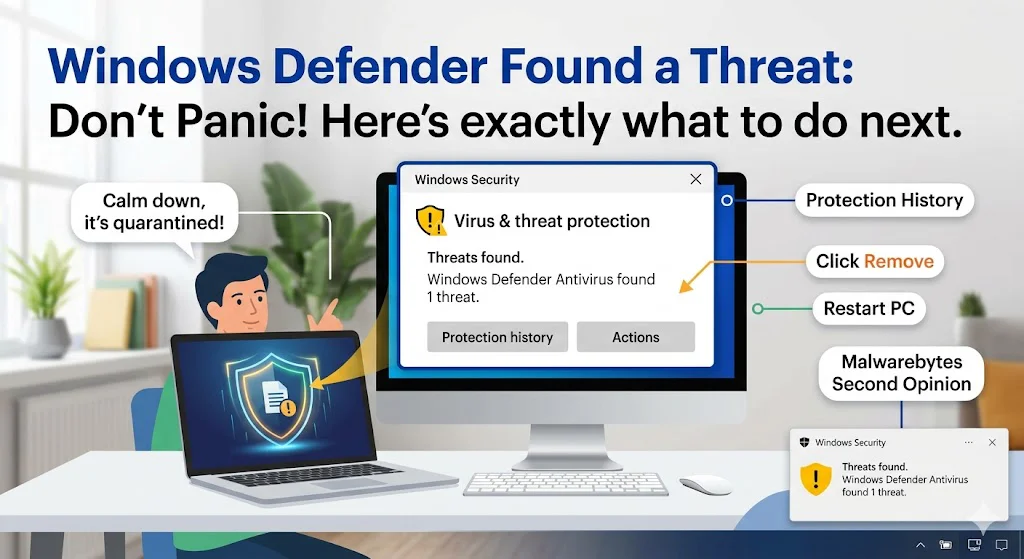
Open Windows Security → Virus & Threat Protection → Protection History. Find the detected item. Click Remove (not Allow). Restart your PC. Then run Malwarebytes Free as a second opinion. If both are clean — you are done. The detailed steps and what to do for specific threat types are all below.
What quarantine actually means
When Windows Defender quarantines a file, it does not delete it — it moves it to a completely locked, isolated folder called the quarantine vault. Inside this vault, the file cannot execute, cannot communicate with any server, cannot modify other files, and cannot do anything at all. It is completely neutralised.
Think of it like a wasp trapped inside a sealed glass jar. It is still technically there, but it cannot sting anyone. Your PC is not in danger while a threat sits in quarantine.
From quarantine, you have two options: Remove (permanently delete it — the right choice in nearly every case) or Allow (restore it to its original location — only appropriate if Defender made a mistake and flagged a file you know with certainty is safe).
Is Windows Defender Enough to Protect Your PC? The Honest Answer
What different threat types mean — and how seriously to take each
The threat name Defender shows tells you a lot about how serious the situation is and what you need to do beyond just removing it. Here is what the most common threat categories actually mean:
Trojan, RAT (Remote Access Trojan), Backdoor
These are designed to give attackers remote access to your computer or steal data. A Trojan disguises itself as legitimate software. A RAT gives a hacker live control of your machine. If Defender found one of these, treat it seriously — especially if it has been on your system for any length of time.
→ Remove immediately. Change passwords from a different device. Run Malwarebytes scan. Consider checking bank and email accounts for unusual activity.
Infostealer, Keylogger, Spyware, Password Stealer
These are specifically built to capture what you type — passwords, credit card numbers, banking credentials — and send them to an attacker. Even if Defender caught it quickly, assume your credentials may have been logged if this was running in the background.
→ Remove immediately. Change ALL passwords from your phone or a different PC before doing anything else. Enable two-factor authentication on email and banking right now.
Ransomware, Cryptominer, Worm
Ransomware encrypts your files and demands payment — if Defender caught it before it ran, you got lucky. Check that your files are still accessible and intact. A cryptominer uses your CPU to mine cryptocurrency for attackers. A worm spreads itself across networks.
→ Remove immediately. Verify your important files are still readable. Run a second scan. If you use the same PC on a work network, alert whoever manages IT.
Adware, PUP (Potentially Unwanted Program), Browser Hijacker
Adware generates unwanted ads. PUPs are borderline programs — often bundled with free software installers — that aren’t technically malicious but are unwanted. Browser hijackers change your search engine or homepage. Annoying and worth removing, but not the kind of thing that steals passwords.
→ Remove. Restart your browser and check your extensions list for anything unfamiliar. Password changes generally not required for these.
HackTool, Exploit, Suspicious behaviour
These are tools that could be used for malicious purposes but may also have legitimate uses (security testing tools, for example). Defender flags them as a precaution. If you are not a security professional and did not deliberately install these, remove them.
→ Remove unless you specifically know what it is and intentionally installed it.
How to Protect Your Parents’ Computer From Viruses
Exact steps to take right now
Step 1 — Takes 2 minutes
Find the threat and remove it from quarantine
- Press Start and search for Windows Security — open it
- Click Virus & Threat Protection
- Scroll down and click Protection History
- Find the detected item — it shows the threat name, severity, and date
- Click on it to expand the details
- Click Remove — not Allow
- If prompted to confirm, click Yes or Remove again
If you see multiple items in Protection History, remove all of them unless you specifically recognise one as something you deliberately installed.
How to Tell If Your Computer Has a Virus: 10 Real Warning Signs
Step 2 — Takes 1 minute
Restart your PC
After removing quarantined items, restart your computer. Some malware components hook into running processes and cannot be fully removed until the system restarts and those processes are no longer active. A restart completes the removal cleanly.
Step 3 — Takes 30 to 60 minutes
Run a Full Scan to confirm nothing else is hiding
- Open Windows Security again after restart
- Go to Virus & Threat Protection → Scan options
- Select Full Scan and click Scan now
- Let it run completely — do not interrupt it
- If it finds additional threats, remove those too and restart again
Malware often travels in groups. The file Defender originally caught may have been accompanied by related components it missed on the first pass. A full follow-up scan catches these.
Popup Says My Computer Is Infected – Scam or Real?
Step 4 — Takes 15 minutes
Run Malwarebytes Free as a second opinion
- Go to malwarebytes.com and download the free version
- Install and open it — decline the Premium trial if prompted
- Click Scan → Threat Scan → Start Scan
- Quarantine anything found, then restart
Malwarebytes and Windows Defender use completely different detection engines. Running both after a detection gives you genuine confidence that the system is fully clean — not just partially cleaned.
Best Antivirus for Android: Does Your Phone Actually Need One?
Do you need to change your passwords?
This is the question most people have after a detection. The honest answer depends entirely on what type of threat was found. Here is a simple reference:
| Threat type found | Change passwords? | Which accounts |
|---|---|---|
| Trojan / RAT / Backdoor | Yes — urgent | All accounts, starting with email and banking |
| Infostealer / Keylogger / Spyware | Yes — immediately | Every account — assume all passwords were captured |
| Ransomware (caught before encrypting) | Yes — recommended | Email and banking as a precaution |
| Cryptominer / Worm | Recommended | Email and banking |
| Adware / PUP / Browser Hijacker | Usually not needed | Only if the adware had spyware components (check the full threat name) |
What if Defender flagged something you know is safe?
False positives happen. Windows Defender occasionally flags legitimate programs — particularly developer tools, game trainers, or software that uses unusual system-level access — as threats when they are genuinely safe.
How to tell if it might be a false positive:
- You deliberately downloaded and installed the flagged program from its official website
- The program has been working fine for months and was flagged only after a Defender update
- Searching online for the exact threat name returns results saying it is a known false positive
If you believe it is a false positive, you can restore it from quarantine by going to Protection History → clicking the item → clicking Allow. However, only do this if you are genuinely certain. When in doubt, leave it quarantined or deleted — losing access to one program is far less damaging than leaving real malware running.
Malwarebytes Premium — the gap-filler Windows Defender needs
Windows Defender caught something this time. But Defender has known gaps — particularly around adware, phishing sites, and PUPs that don’t trigger its detection engine. Malwarebytes Premium runs alongside Defender and covers those exact gaps in real time, blocking threats before they ever land on your system rather than cleaning up afterward.
Affiliate disclosure: We earn a small commission on purchases through our links at no extra cost to you. We only recommend tools we personally test and use.
Frequently asked questions
Last Updated on June 3, 2026 by Security Guru Jay