Tested on ChromeOS 124 and 125.
My colleague bought a Chromebook last year and spent 20 minutes in the electronics store being sold an antivirus subscription to go with it as she was confusing around ‘Do I Need Antivirus for My Chromebook?’. The salesperson was very convincing — viruses are everywhere, all computers need protection, £30 a year is cheap peace of mind. She bought it.
When she mentioned it to me, I had to give her the honest answer: she almost certainly did not need it, and the antivirus software she bought probably does very little on ChromeOS anyway.
This is one of the most misunderstood areas of home security. Most people assume all computers work the same way and need the same protection. Chromebooks are fundamentally different — and understanding why changes the entire answer.
The direct answer For traditional virus protection: no, you almost certainly do not need antivirus on a Chromebook. ChromeOS has multiple built-in security layers that make conventional malware infection extremely rare. What you should pay attention to are the real threats Chromebooks do face — phishing, malicious extensions, and Google account security. The free steps to address those are at the bottom of this guide.
Why ChromeOS security works differently to Windows
Windows is a general-purpose operating system built to run any software, which makes it powerful but also a large attack surface. ChromeOS was designed from the ground up with a completely different philosophy — and that philosophy makes it significantly harder to infect with traditional malware.
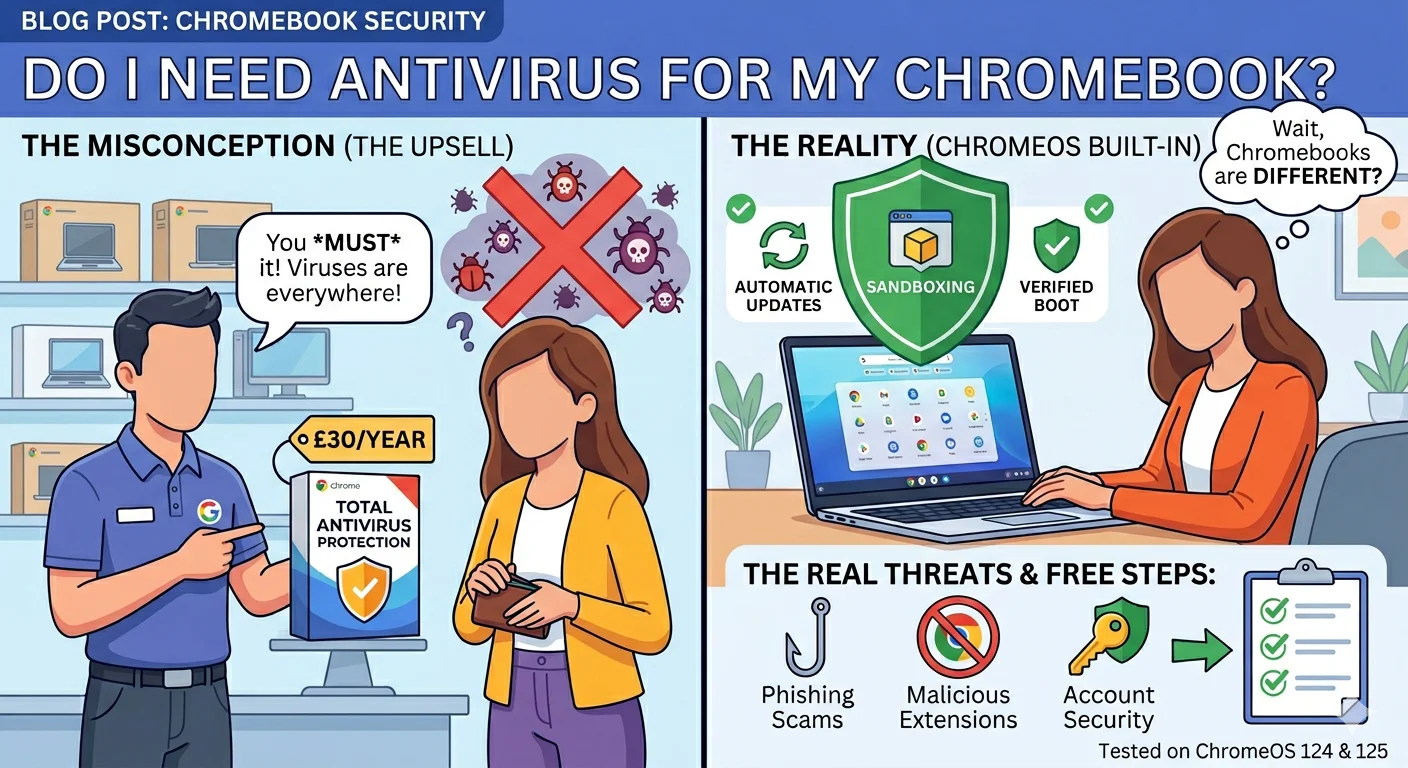
Here are the four security layers built into every Chromebook:
Each browser tab and app on a Chromebook runs in its own completely isolated “sandbox.” If a malicious website attempts to install something or run harmful code, it is trapped inside that sandbox and cannot affect your files, other tabs, or the operating system itself. The infection literally cannot escape.
Every time your Chromebook starts up, ChromeOS checks that the operating system has not been tampered with. If it detects any modification — including malware that tried to embed itself in system files — it automatically restores itself to a clean state. Malware cannot survive a reboot the way it can on Windows.
ChromeOS updates silently and automatically in the background. You do not need to remember to update — it happens without any action from you. Since most malware exploits known, already-patched vulnerabilities, staying current is one of the most powerful defences available — and ChromeOS does it for you.
All data stored on a Chromebook is encrypted automatically. Even if someone physically stole your device, they could not access your files without your Google account credentials. This is particularly meaningful for users who store sensitive documents or photos locally.
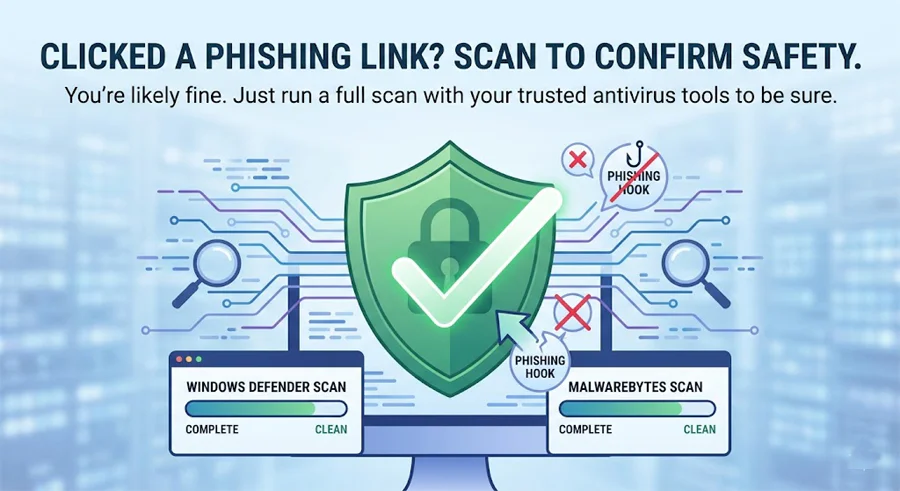
Is Windows Defender Enough to Protect Your PC? The Honest Answer
The threats Chromebooks actually face — be honest about these
ChromeOS’s sandboxing and verified boot make traditional viruses almost irrelevant. But that does not mean Chromebooks have no security risks. Here are the threats that are real and worth taking seriously:
Real threat
Phishing attacks
Fake websites impersonating your bank, Google, Amazon, or other trusted services. These work exactly the same on a Chromebook as on any other device — ChromeOS’s sandboxing cannot protect you from typing your password into a convincing fake login page. Phishing is the number one threat for Chromebook users.
Real threat
Malicious Chrome extensions
Browser extensions have broad access to your browsing activity. Malicious extensions — including some that have appeared in the official Chrome Web Store before being removed — can steal data, inject ads, redirect searches, and track everything you do online. Only install extensions from developers you trust and with clear legitimate purposes.
Real threat
Google account compromise
Your Chromebook is deeply tied to your Google account. If someone gains access to your Google account — through a phishing attack or a reused password from another breached service — they effectively have access to your Gmail, Drive files, Chrome passwords, and potentially your Chromebook itself. Protecting your Google account is the single most important security action a Chromebook user can take.
Lower risk
Malicious Android apps (if Android apps are enabled)
Chromebooks that support Android apps can install them from the Google Play Store. While Play Store apps go through Google’s review process, malicious apps have historically slipped through. Only install Android apps from well-known, established developers and review the permissions each app requests before installing.
Very rare
Traditional malware / viruses
Conventional file-based malware that infects Windows PCs is extremely rare on ChromeOS. The sandboxing and verified boot combination makes it technically very difficult. In real-world usage, this is not a meaningful threat for the vast majority of Chromebook users.
Does antivirus software actually work on a Chromebook?
This is the question the electronics store salesperson did not want my colleague to ask — because the honest answer is: very limitedly.
Traditional antivirus software is designed to scan files on a hard drive for known malicious patterns. On ChromeOS, apps run in sandboxes and the file system is heavily restricted. Antivirus apps installed from the Play Store on a Chromebook cannot scan system files, cannot monitor most app behaviour, and cannot intercept threats at the operating system level the way they can on Windows.
What a Play Store antivirus on a Chromebook can do: scan files you have manually downloaded to your Downloads folder, offer a VPN, and sometimes provide web filtering within their own browser. What it cannot do: the deep system-level scanning and real-time protection it performs on Windows.
What to actually install on your Chromebook (all free)
Free · Highly recommended
uBlock Origin — Chrome extension
The single most effective security addition for any Chromebook. uBlock Origin is a free, open-source Chrome extension that blocks malicious ad networks, known phishing sites, trackers, and crypto-mining scripts. It stops the vast majority of browser-based threats before your browser even loads the page. It is also one of the most widely trusted browser extensions in existence — used by over 40 million people.
→ Install from the Chrome Web Store: search “uBlock Origin” — install the one by Raymond Hill with 40M+ users.
Free · Essential
Secure your Google account with 2-Step Verification
This is the highest-impact security action a Chromebook user can take. If your Google account has two-step verification (2FA) enabled, even if someone steals your password they cannot access your account without the 6-digit code sent to your phone. Go to myaccount.google.com → Security → 2-Step Verification and turn it on. Takes five minutes. Makes your Chromebook significantly more secure than any antivirus subscription would.
→ myaccount.google.com → Security → 2-Step Verification → Get started.
Free · Recommended
Review and clean up your Chrome extensions
Open Chrome, click the three-dot menu → More Tools → Extensions. Look through every extension installed. Remove anything you did not deliberately install or no longer use. For each remaining extension, click Details and check what permissions it has — be suspicious of extensions that request access to all your browsing data when their function does not require it.
→ Chrome menu → More Tools → Extensions → review and remove anything unnecessary.
Optional · Worth it for public WiFi users
A VPN — if you regularly use public WiFi
If you use your Chromebook at coffee shops, airports, hotels, or any public network, a VPN encrypts your connection and prevents anyone on the same network from seeing your traffic. This is meaningful protection that no antivirus addresses. ProtonVPN has a free tier. Mullvad and ExpressVPN are strong paid options. For home-only use, a VPN is not necessary.
→ Install directly from the Chrome Web Store or as an Android app from Play Store.
The most important Chromebook security step most people skip
Because a Chromebook is so deeply integrated with your Google account, the security of that account matters more than any software you install. Here is the full checklist for locking down your Google account:
- Enable 2-Step Verification — use Google Authenticator or a hardware security key, not just SMS which can be intercepted
- Use a unique, strong password for your Google account — not the same password as anything else
- Check active sessions at myaccount.google.com → Security → Your devices — remove any you do not recognise
- Review third-party app access at myaccount.google.com → Security → Third-party apps — revoke access to anything you no longer use
- Turn on Google’s Advanced Protection Programme if you are a high-risk user (journalist, activist, executive) — it uses physical security keys and provides the strongest available account protection
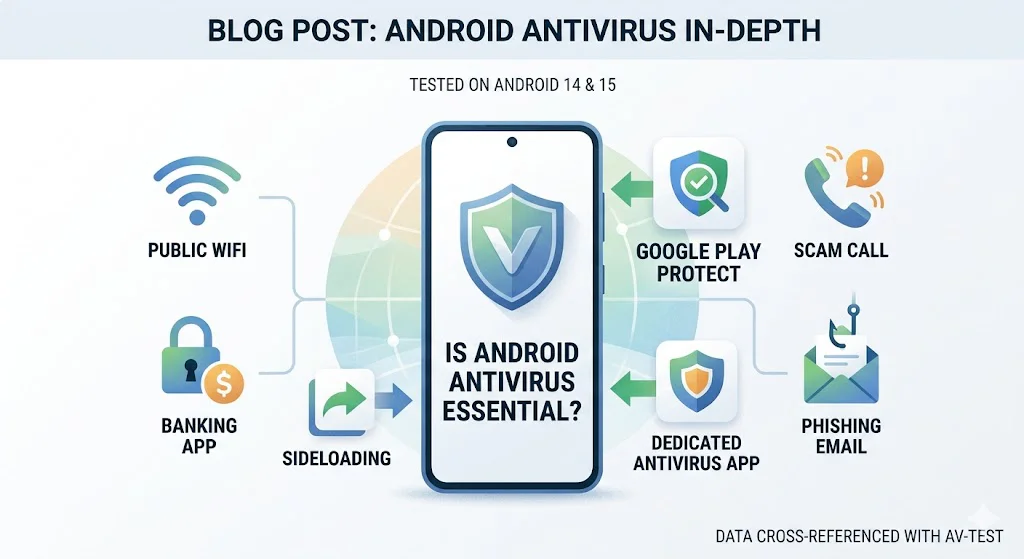
A VPN — if you use public WiFi regularly
Traditional antivirus is largely unnecessary on ChromeOS. But if you regularly use your Chromebook on public networks — a VPN is genuinely meaningful protection that addresses a real gap. It encrypts all your traffic so no one on the same network can intercept it. Surfshark offers one of the best value VPN subscriptions with unlimited devices and strong privacy credentials.
Frequently asked questions
Last Updated on May 22, 2026 by Security Guru Jay