Tested and verified on Windows 10 and Windows 11.
You’re browsing normally — reading the news, checking email, shopping — and suddenly your screen fills with a terrifying red warning. An alarm is blaring from your speakers. Bold text screams that ‘Popup Says My Computer Is Infected’ your computer is severely infected. A phone number appears telling you to call Microsoft immediately.
Your heart rate spikes. Your first instinct is to do something — anything — to fix it.
Here is what I want you to know before you do a single thing: in the vast majority of cases, that popup is a scam. I have seen this exact scenario hundreds of times helping friends, family, and readers. In every single case where the warning appeared inside a browser tab with a phone number attached — every single one — it was fake.
The scam relies entirely on your panic. The moment you stay calm and know what to look for, it loses all its power.
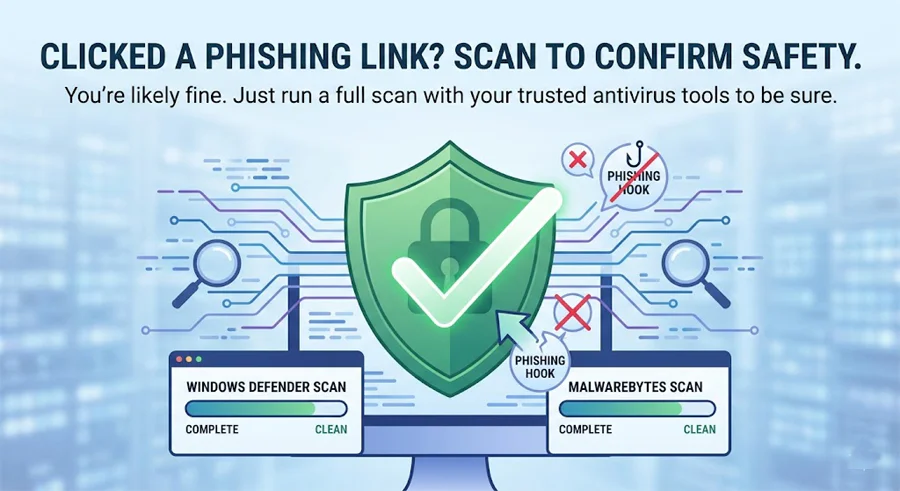
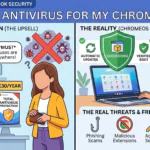
If the warning appeared inside your web browser (Chrome, Edge, Firefox, Safari) and shows a phone number: it is almost certainly a scam called scareware. Close the tab. Do not call the number. Do not click anything inside the popup. Then open Windows Security from your Start menu and run a Full Scan to confirm your PC is clean — which it almost certainly is.
How to tell in 60 seconds: real warning vs scam
There is one question that settles this almost every time:
Did the warning appear inside your web browser, or did it appear as a separate Windows notification?
🚨 Almost certainly a scam if…
- It appeared inside Chrome, Edge, Firefox, or Safari as a webpage
- It shows a phone number to call
- It plays an alarm sound or voice message
- It claims to be from “Microsoft Support” or “Windows Security”
- It says your computer will be “blocked” or “disabled”
- It lists specific viruses with scary-sounding names
- The URL in your address bar is not microsoft.com
- It asks you to download something to fix the problem
✅ Could be a real warning if…
- It appeared as a small notification in the bottom-right corner of Windows — not a full-page browser popup
- It came from the Windows Security shield icon in your taskbar
- It names a specific file path on your computer
- It does NOT show a phone number
- It offers to Quarantine or Remove the threat — not to call anyone
- Clicking it opens the Windows Security app, not a website

The anatomy of a scareware scam — so you recognise it every time
These scams are professionally produced. They invest real money in making their fake warnings look convincing. Understanding their playbook makes you immune to them.
How to close the popup safely — 3 methods
The popup is designed to prevent you from closing it. Here’s how to get rid of it regardless:
Method 1 — Try this first
Press Escape, then close the tab
Press the Escape key once — this sometimes dismisses the full-screen mode and restores your browser controls. Then click the X on just that tab (not the whole browser window). If a popup appears asking “Are you sure you want to leave?” — click Leave or Stay doesn’t matter — just close the tab.
Method 2 — If the tab won’t close
Use keyboard shortcuts to close the tab
Press Ctrl + W to close the current tab without touching anything in the popup. If a dialog appears asking to confirm leaving the page, click Leave Page or OK. The tab will close.
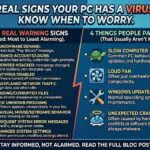
How to Tell If Your Computer Has a Virus: 10 Real Warning Signs
Method 3 — If nothing else works
Force-quit via Task Manager
- Press Ctrl + Shift + Esc to open Task Manager
- Find your browser (Chrome, Edge, Firefox) in the list
- Click it once to select it, then click End Task
- Your browser will close completely
- When you reopen the browser, if it offers to restore your previous tabs — click No or Start fresh
This is completely safe. You won’t lose anything important by force-closing a browser.
How to confirm your PC is actually clean
Once you’ve closed the popup, your PC is almost certainly fine. But running a quick scan costs you 30 minutes and buys you complete peace of mind. Here’s the fastest way:
Scan Step 1
Run Windows Defender Full Scan
- Press Start, search Windows Security, open it
- Go to Virus & Threat Protection
- Click Scan options → Full Scan → Scan now
- Let it finish — 30 to 60 minutes
- If clean: you’re done. If threats found: click Remove, then restart
Scan Step 2 — Optional but recommended
Run Malwarebytes Free as a second opinion
- Download from malwarebytes.com (free version)
- Install, open, click Scan → Threat Scan → Start Scan
- Quarantine anything found, restart
If both come back clean: your computer has no infection. The popup was entirely fake, as expected.
Already called the number? Do this immediately
If you called the number and spoke to someone — or worse, if you let them remote into your computer — the situation is more serious but still recoverable. Don’t be embarrassed. These scams are professionally run operations that fool thousands of people every week.
If you only called and spoke to them, but did not let them access your computer:
- You are likely fine. Hang up and don’t call back.
- Block the number.
- Run a scan as described above just to be certain.
If you let them remotely access your computer:
- Disconnect from the internet immediately — unplug the cable or turn off WiFi
- Change all your passwords from a different device right now — email first, then banking
- Call your bank immediately if you gave any payment information
- Run a full scan with both Defender and Malwarebytes
- Consider taking the PC to a local computer shop for a professional clean — remote access tools can be hidden deep in a system
If you paid them:
- Contact your bank or card provider immediately and report it as fraud
- If you paid by credit card, request a chargeback
- Report the scam to Action Fraud (UK), the FTC (US), or your country’s equivalent consumer protection authority
How to stop these popups appearing in the future
Scareware popups most commonly appear when visiting certain categories of website — free streaming sites, pirated software download pages, adult content sites, and sites with aggressive advertising networks. But they can occasionally appear even on legitimate sites that have been compromised.
Here’s what actually prevents them:
- Install a browser ad blocker — uBlock Origin (free, for Chrome and Firefox) blocks the malicious ad networks that trigger scareware. This single extension prevents the vast majority of these popups from ever appearing. Install it and forget it.
- Enable real-time web protection — tools like Malwarebytes Premium maintain a live database of known scareware domains and block them before the page loads
- Keep your browser updated — Chrome, Edge, and Firefox all push updates that patch vulnerabilities these pages try to exploit. Never ignore browser update prompts.
- Tell the people around you — seniors are disproportionately targeted by these scams. If you have elderly parents or relatives who use computers, show them this page or walk them through what a real vs fake warning looks like. Awareness is the best prevention.
Malwarebytes Premium — real-time web protection
The free version of Malwarebytes is excellent for scanning after the fact. But Premium adds real-time web filtering that checks every site you visit against a live database of known scareware, phishing, and malicious sites — and blocks them before your browser ever loads them. No popup. No alarm sound. Just a quiet notification that a dangerous site was blocked.
Frequently asked questions
Last Updated on May 19, 2026 by Security Guru Jay