Diagnostic steps verified on Windows 10 and Windows 11.
Your computer was perfectly fine yesterday. Today it’s running like it’s wading through treacle. Every click takes seconds to respond. Opening a browser feels like a workout for the PC. Your fan is roaring.
Your first thought: My PC Is Suddenly Very Slow – Could It Be a Virus?
It’s a reasonable instinct — and it’s sometimes correct. But in over fifteen years of helping people with slow computers, I’ve found that malware is actually one of the less common causes of sudden slowdown. Before you spend hours worrying about infection, let me show you how to diagnose the real cause in about five minutes using tools already on your PC.
Most of the time, the fix takes less than 10 minutes and costs nothing.
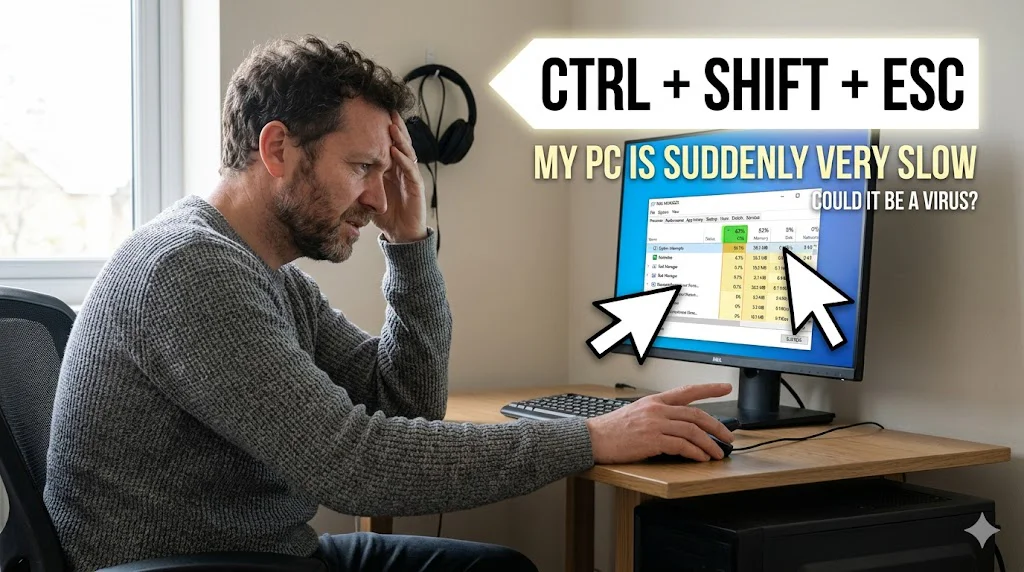
⚡ Fastest way to find the cause Press Ctrl + Shift + Escright now to open Task Manager. Click the CPU column header to sort by usage. Whatever is at the top is what’s slowing your PC. If it’s a Windows process or your antivirus — that’s normal activity. If it’s something you don’t recognise sitting at 80–100% — that warrants a scan. The full diagnostic walkthrough is below.
5-minute diagnosis using Task Manager
Task Manager is your first and most powerful diagnostic tool. It shows you exactly what your computer is doing right now — which processes are running, how much CPU and memory each one is using, and what’s hammering your hard drive. It tells you more in 30 seconds than any guessing will.
Open it now: press Ctrl + Shift + Esc simultaneously.
What to look at and what it means
Click the header to sort highest to lowest. Normal: 0–20% at idle. Concerning: one unknown process at 50%+ constantly. Likely innocent: “Windows Update” or your antivirus at 30–80% — they finish on their own.
💡 One quick check: Look at the bottom of Task Manager for overall CPU, Memory, and Disk percentages. If CPU is high, click the Processes tab and sort by CPU. If Disk is at 100%, sort by Disk. The culprit will be right at the top.
The most common causes of sudden PC slowdown — ranked by likelihood
Most likely cause #1
Windows Update downloading or installing in the background
Windows 10 and 11 download and install updates automatically, often at the worst possible moments. This can consume 30–80% CPU, spike disk usage to 100%, and slow everything else to a crawl — for 30 minutes to 2 hours. In Task Manager, you’ll see “Windows Update” or “TiWorker.exe” or “WaasMedicSVC.exe” near the top.
✓ Fix: Leave it alone and let it finish. It will complete and the PC will return to normal speed on its own. Or restart your PC — Windows will apply the update during restart and finish faster.
Most likely cause #2
Hard drive is too full (under 10% free space)
When your hard drive or SSD has less than 10% free space, Windows struggles to create temporary files, manage virtual memory, and perform basic operations. The result is dramatic, sudden slowdown. This is especially common on laptops with 256GB or smaller drives. Check by opening File Explorer and looking at how much space is left on your C: drive.
✓ Fix: Delete files you no longer need, empty the Recycle Bin, and run Disk Cleanup (search for it in the Start menu). Freeing up even 10–20GB often transforms performance immediately.
Most likely cause #3
Too many programs starting up automatically
Every time you install a program, it often adds itself to your startup list so it launches every time you turn on your PC. After a few years, you can have 20–30 programs all starting simultaneously. This slows boot time dramatically and keeps background processes running all day consuming memory. Open Task Manager → Startup tab to see what’s loading.
✓ Fix: In Task Manager → Startup tab, right-click anything you don’t need at startup and click Disable. You’re not uninstalling it — just stopping it from loading automatically. Restart and notice the difference.
Possible cause #4
Antivirus running a scheduled full scan
Both Windows Defender and third-party antivirus tools run scheduled scans in the background — often daily or weekly. During a full scan, CPU usage can spike to 40–70% and disk activity goes to 100%. The PC feels sluggish but it’s doing exactly what it should be doing. In Task Manager, you’ll see “Antimalware Service Executable” or your antivirus name at the top.
✓ Fix: Let it finish — usually 30–60 minutes. To prevent future disruption, open Windows Security → Virus & Threat Protection → Manage settings → Schedule scans to run overnight when you’re not using the computer.
Possible cause #5
Overheating — processor throttling its speed to cool down
When a laptop or desktop overheats, the processor deliberately slows itself down (called thermal throttling) to prevent damage. This can halve or quarter normal performance instantly. Signs: the bottom of your laptop is extremely hot, the fan is running at full speed, and performance got worse after using the device for a while. Dust blocked vents are the most common cause.
✓ Fix: Shut down, let it cool for 15 minutes, then restart on a hard flat surface with clear air around the vents. If this keeps happening, the internal fans or vents need professional cleaning — a cheap fix at any computer shop.
Less common cause #6
Malware — particularly cryptominers or adware
Cryptomining malware hijacks your CPU to mine cryptocurrency for an attacker, which can push CPU usage to 90–100% constantly. Adware with aggressive background processes also slows PCs. In Task Manager, a cryptominer often appears as an unfamiliar process name with very high and consistent CPU usage — not the spikes you’d see from a Windows update, but constant, sustained drain. It won’t appear during idle and then stop — it runs permanently.
✓ Fix: Run a Full Scan with Windows Defender, then a Threat Scan with Malwarebytes Free. See the full scan steps below.
Specific signs the slowdown IS caused by malware
A slow PC alone is rarely a virus. But combined with any of these, the probability rises significantly:
- An unrecognised process is permanently using 50%+ CPU even when you’re doing absolutely nothing — and it doesn’t stop after 30–60 minutes the way a Windows Update would
- Your browser is slower than everything else — tabs open slowly, searches redirect to unfamiliar engines, new toolbars appeared that you didn’t install
- Windows Defender has been turned off without you doing it
- New programs appeared in Settings → Apps that you don’t remember installing
- Your homepage or default search engine changed on its own
- The slowdown happened immediately after downloading something from an unofficial site
If you recognise two or more of those, skip straight to the scan steps below. If it’s only the slowness without any of those signals, work through the non-malware fixes first — they’re faster and more likely to be the actual answer.
How to fix each cause — step by step
Fix 1 — Takes 2 minutes
Disable unnecessary startup programs
- Press Ctrl + Shift + Esc to open Task Manager
- Click the Startup tab at the top
- Look at the “Startup impact” column — disable anything marked High or Medium that you don’t need immediately on boot
- Right-click each one and select Disable
- Restart your PC and notice the difference
Safe to disable: Spotify, Discord, Teams, Zoom, OneDrive, Skype, Steam, iTunes, anything you don’t use every single day. You can still open them manually when you need them.
How to Tell If Your Computer Has a Virus: 10 Real Warning Signs
Fix 2 — Takes 5 minutes
Free up disk space with Disk Cleanup
- Press Start and search Disk Cleanup, then open it
- Select drive C: and click OK
- Tick all boxes — Temporary files, Recycle Bin, Thumbnails, etc.
- Click Clean up system files for a deeper clean
- Click OK and let it run
On a machine that hasn’t been cleaned in a year, this can free up 5–20GB and noticeably improve performance, especially if the drive was over 85% full.
Fix 3 — Takes 1 minute
Check if a Windows Update is in progress
- Press Start → Settings → Windows Update
- If an update is downloading or installing, you’ll see progress there
- Let it finish completely, then restart
- After restart, your PC should return to normal speed
To prevent updates from running during working hours: in Windows Update → Advanced options → Active hours. Set your working hours and Windows will schedule updates outside them.
How to run a virus scan if you’re still not sure
If you’ve checked Task Manager, ruled out updates and disk space, and your PC is still dragging — or you spotted any of the malware warning signs above — run these two scans. They’re free and take about 45 minutes combined.
Scan 1
Windows Defender Full Scan
- Search for Windows Security in the Start menu and open it
- Go to Virus & Threat Protection
- Click Scan options → select Full Scan
- Click Scan now — this takes 30–60 minutes
- If threats found: click Remove → restart
Scan 2 — Second opinion
Malwarebytes Free
- Download from malwarebytes.com (free version)
- Install and open it — decline Premium trial if prompted
- Click Scan → Threat Scan → Start Scan
- Quarantine anything found, then restart your PC
If both scans come back completely clean, your slowdown is caused by something other than malware. Go back and work through the startup programs and disk space fixes — those will almost certainly solve it.
🛡️ Prevent Cryptominers and Adware Before They Slow You Down
Malwarebytes Premium — real-time protection against the processes that drain your PC
Cryptominers and adware — the two types of malware most likely to slow your computer down — are exactly what Malwarebytes Premium is built to catch in real time. While Windows Defender focuses on viruses and trojans, Malwarebytes specialises in the background processes and adware that steal your system resources without you noticing. It blocks them before they ever install.
Frequently asked questions
Last Updated on May 19, 2026 by Security Guru Jay