Written for non-technical users. Steps verified on Windows 10, Windows 11, Android, and iPhone.
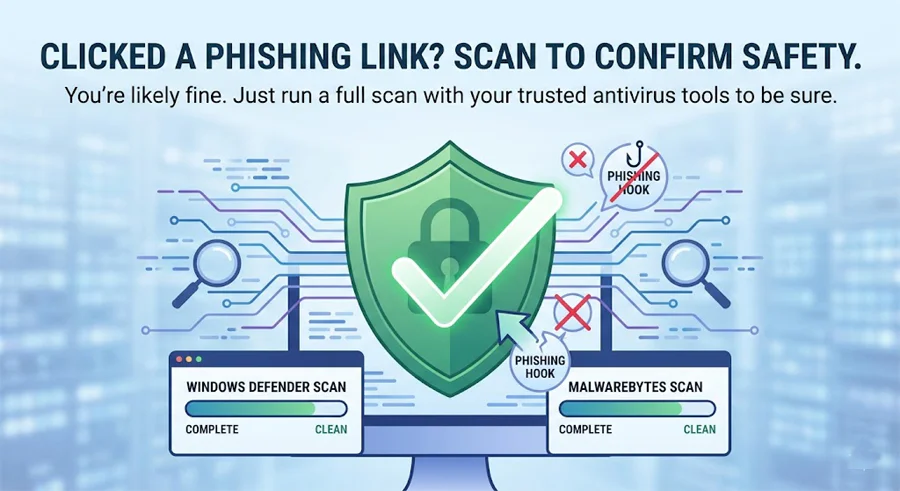
I clicked a phishing link but didn’t enter anything — am I safe?You’re likely fine, but run a scan to confirm. Simply loading a malicious page can in rare cases trigger a drive-by download on unpatched browsers. Run a full scan with Windows Defender and Malwarebytes Free. If both come back clean and you didn’t download or install anything, you’re almost certainly okay.
It happens to everyone. A message arrives that looks completely legitimate — your bank, a courier company, a friend sharing something interesting. You click before you think. A split-second later something feels wrong, and your stomach drops.
I’ve been there. And I’ve helped dozens of people through exactly this situation. The good news: most of the time, clicking a phishing link without doing anything else is far less dangerous than people fear. The panic itself often causes more harm — people start frantically clicking things, downloading “fix it” tools from random sites, or calling phone numbers that appear on screen, all of which make things dramatically worse.
Stop. Take a breath. Follow these steps in order and you will be okay.
First: how risky was your click, really?
Not all phishing link clicks are equal. Your actual risk depends almost entirely on what happened after you clicked — not the click itself. Here’s a simple way to assess your situation:
You clicked, the page loaded briefly (or not at all), you closed it immediately, and you didn’t type anything or click any button on that page.
The page loaded fully, you spent time on it, but you did not enter any information, download anything, or grant any permissions.
You entered a username, password, or personal details. Or you clicked “Download,” “Allow,” or “Install” on something that appeared after the link.
Lower risk doesn’t mean zero risk — but it means the odds are strongly in your favour. A drive-by download that installs malware just from loading a page is possible in theory, but extremely rare on updated browsers. If your Chrome, Edge, or Firefox is current, a page loading by itself is very unlikely to cause harm.
Higher risk means act urgently — especially the steps about changing passwords.
The 5 steps to take right now — in this exact order
Close the tab and don’t interact with anything on that page
If the suspicious page is still open, close just that tab — not your entire browser. Do not click any button, “X to close” popup, or “Your PC is infected — click here” message that appeared on that page. These are social engineering traps designed to get you to download something or call a fake number.
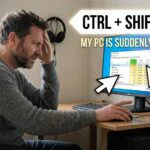
If the tab refuses to close normally, press Ctrl + Shift + Esc to open Task Manager, find your browser in the list, and click End Task. Then reopen your browser normally — your other tabs will reopen but not the malicious one.
Disconnect from the internet immediately
Click the WiFi icon in your taskbar and select Disconnect. Or if you’re on a wired connection, unplug the cable from the back of your PC. This is a precaution that takes five seconds and costs nothing — if any malware did manage to run, cutting the connection stops it from calling home, downloading additional components, or sending your data anywhere.
You’ll reconnect in Step 3. The scan tools work offline because their virus definitions are already saved locally.
Run a full scan with Windows Defender
- Press Start and search Windows Security, then open it
- Click Virus & Threat Protection
- Click Scan options — do not use Quick Scan
- Select Full Scan and click Scan now
- Wait for it to finish — typically 30 to 60 minutes
- If anything is found, click Remove, then restart your PC
While that runs, leave the internet disconnected. The scan works completely offline.
Run Malwarebytes Free as a second opinion
Reconnect to the internet briefly for this step.
- Go to malwarebytes.com and download the free version
- Install it and open it — decline any Premium trial prompts for now
- Click Scan, then Threat Scan, then Start Scan
- If anything is found, click Quarantine and restart
Malwarebytes uses a completely different detection engine to Defender. Running both gives you far more confidence than either tool alone. I’ve seen Defender come back clean and Malwarebytes catch adware that installed itself silently — and vice versa.
Change your passwords — but only for accounts connected to that link
If the phishing page was impersonating a specific company — your bank, PayPal, Amazon, Gmail — change your password for that account immediately, from your phone or a different device, not from the PC you’re cleaning. Assume the page was designed to capture that login even if you didn’t type anything, as a precaution.
Priority order for password changes:
- Whatever service the phishing link was pretending to be
- Your primary email account — it’s the master key to everything else
- Online banking and PayPal
- Any account where you use the same password as above
While you’re changing passwords, turn on two-factor authentication (2FA) for your email and banking accounts. Even if a hacker has your password, they cannot log in without the code sent to your phone.
What to watch for over the next 30 days
Even after a clean scan, stay alert for the following over the next month. Some malware lies dormant before activating, and some credential theft takes days to be exploited.
If you receive password reset requests you didn’t ask for, someone has your email address and is trying to break into linked accounts. Change that email password immediately.
Even small test transactions of £0.01 or £1 can indicate someone is verifying your card details before making larger charges. Report immediately to your bank.
If contacts tell you they’ve received weird messages from your accounts, your social media or email has been accessed. Change that password from a different device immediately.
Most services email you when a new device logs in. Watch for login notifications from cities or countries you haven’t been to — that’s your account being accessed by someone else.
Special section: if you entered your password on that page
This is the scenario that requires the most urgent action. Phishing pages are built for one purpose: to capture your credentials the moment you type them. The page likely looked identical to the real site — same logo, same layout, same colours. That’s deliberate.
If you typed your password, treat it as compromised immediately — regardless of whether the scan finds anything.
- Change the password right now from your phone, not the affected PC
- Check for active sessions — Gmail, Facebook, and most banking apps show you where your account is currently logged in. Look for unfamiliar devices or locations and remove them
- Enable 2FA on that account immediately — this is the single most effective thing you can do
- If it was your banking password — call your bank directly using the number on the back of your card and inform them. They can flag your account for monitoring and reverse fraudulent transactions faster if they know
How to stop this happening again
The phishing link that caught you was almost certainly designed by professionals. These aren’t amateur attempts — they’re carefully crafted to look exactly like messages you’d expect to receive. You are not naive for being caught. But there are habits that make you dramatically harder to fool:
- Hover before you click — on desktop, hover your mouse over any link before clicking. The real destination URL appears in the bottom-left of your browser. If it doesn’t match the company the message claims to be from, don’t click.
- Go directly to the website instead of clicking the link — if an email says your account needs attention, don’t click the link. Open a new tab and type the website address yourself. If there really is a problem, you’ll see it when you log in normally.
- Question urgency — phishing messages almost always create artificial urgency: “Your account will be suspended in 24 hours.” Legitimate companies don’t operate this way. Urgency is a manipulation tactic.
- Use a password manager — password managers only autofill your credentials on the exact domain they were saved for. If you’re on a fake PayPal page, your password manager won’t autofill — because the URL doesn’t match. This alone stops most phishing attacks dead.
- Enable real-time web protection — tools like Malwarebytes Premium block known phishing URLs before the page even loads, so even an accidental click never reaches a dangerous destination.
Malwarebytes Premium — blocks phishing sites before they load
The free version of Malwarebytes is great for cleaning up after an incident. But Premium adds something the free version doesn’t: real-time web protection that checks every URL you click against a live database of known phishing and malicious sites — and blocks them before the page loads. One click on a phishing link becomes a harmless blocked page instead of a security crisis.
Affiliate disclosure: We earn a small commission on purchases through our links at no extra cost to you. We only recommend tools we’ve personally tested.
Frequently asked questions
Related guides
- I Think My Computer Has a Virus — Here’s Exactly What to Do
- How to Tell If Your Computer Has a Virus: 10 Real Warning Signs
- Is Windows Defender Enough? The Honest 2026 Answer
- Someone Hacked My Email — What Do I Do Right Now?
- Free vs Paid Antivirus: Is It Worth Paying?
Last Updated on June 3, 2026 by Security Guru Jay